Step #1
Video: 0:05
|
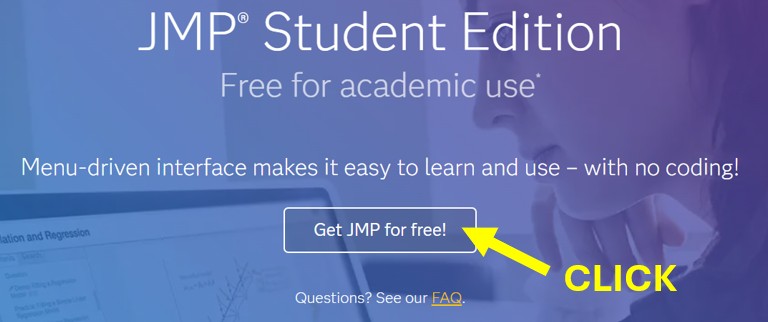
Visit jmp.com/student and click the Get JMP for free! button.
|
Step #2
Video: 0:15
|
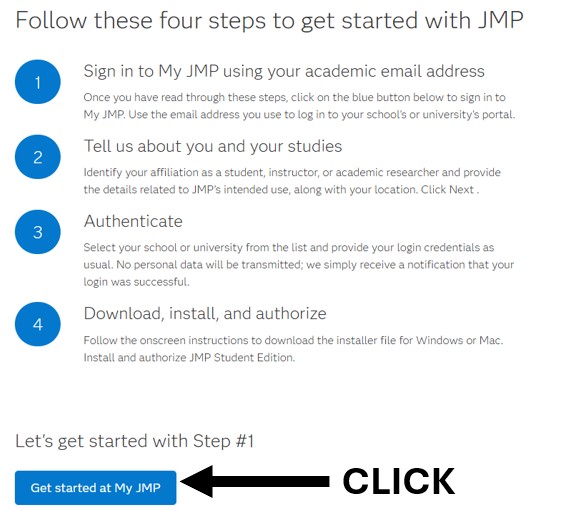
The first step is to create an account at JMP. Click Get started at My JMP at this step.
|
Step #3
Video: 0:20
|
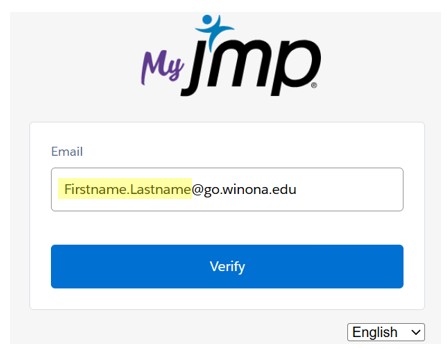
You must use a @go.winona.edu email for your JMP account. JMP is free when your email is associated with Winona State Univeristy.
Email Address: Firstname.Lastname@go.winona.edu
Click Verify button.
|
Step #4
Video: 0:55
|
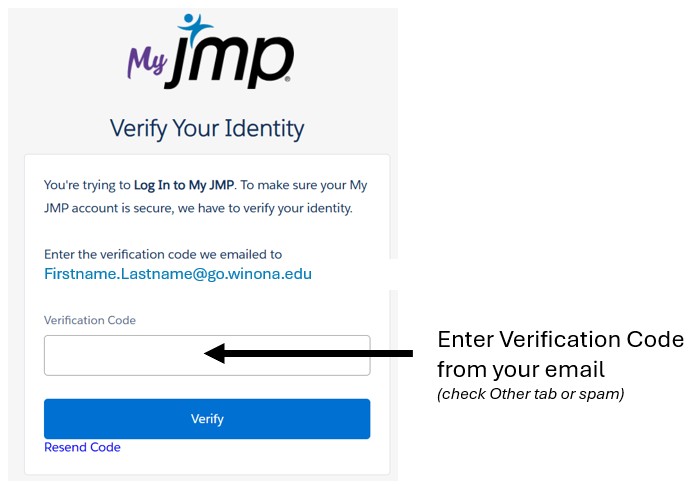
Next, enter the Verification Code that was sent to your WSU email account.
The email is coming from no-reply@JMP.com and has a subject of Verify your new account in My JMP.
Note: This email may be in your Other tab or your spam folder.
|
|
Step #5
|
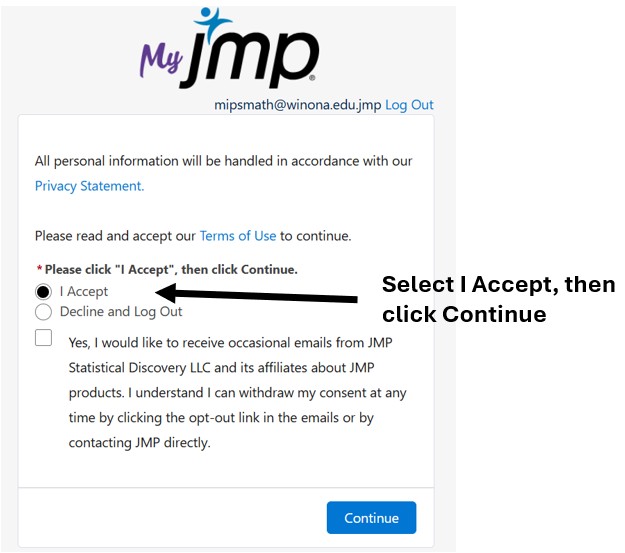
You know have a My JMP account. In this next Window, select I Accept and click the Continue button.
|
Step #6
Video: 1:15
|
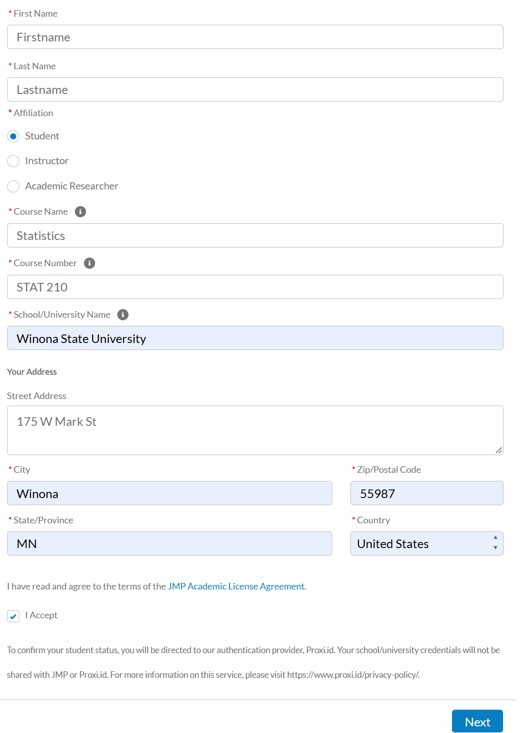
Complete the necessary fields in the next window provided. Make sure all required fields are filled in. Click Next.
|
Step #7
Video: 1:55
|
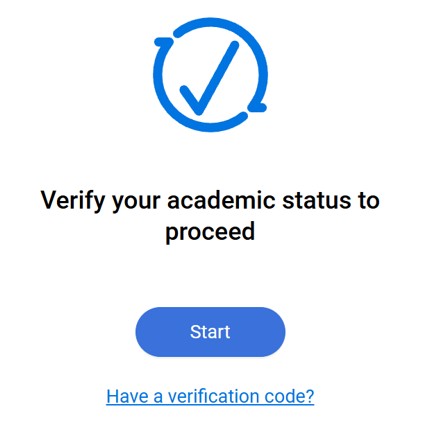
JMP now has all the necessary information for your My JMP account. In the next few steps,
JMP will use a 3rd party app, i.e. proxi.id, to verify that you are indeed a student. Click the Start button.
|
Step #8
Video: 2:00
|
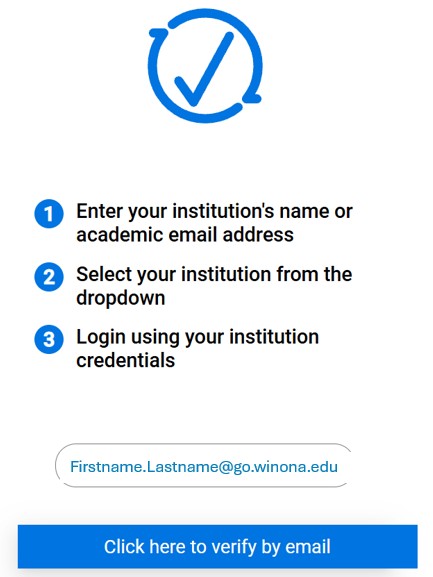
Enter Firstname.Lastname@go.winona.edu in the box provided and select the Click here to verify by email button.
|
Step #9
Video: 2:05
|
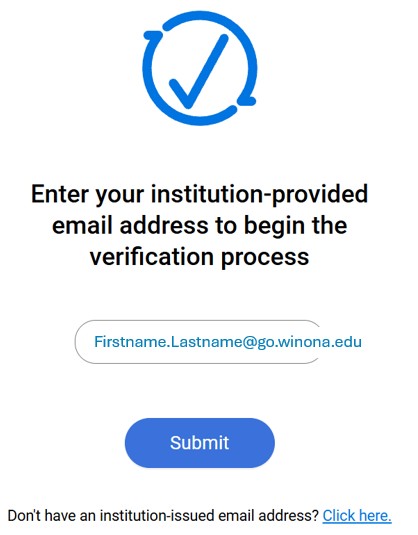
Again, enter your Firstname.Lastname@go.winona.edu email and click Submit.
|
Step #10
Video: 2:10
|
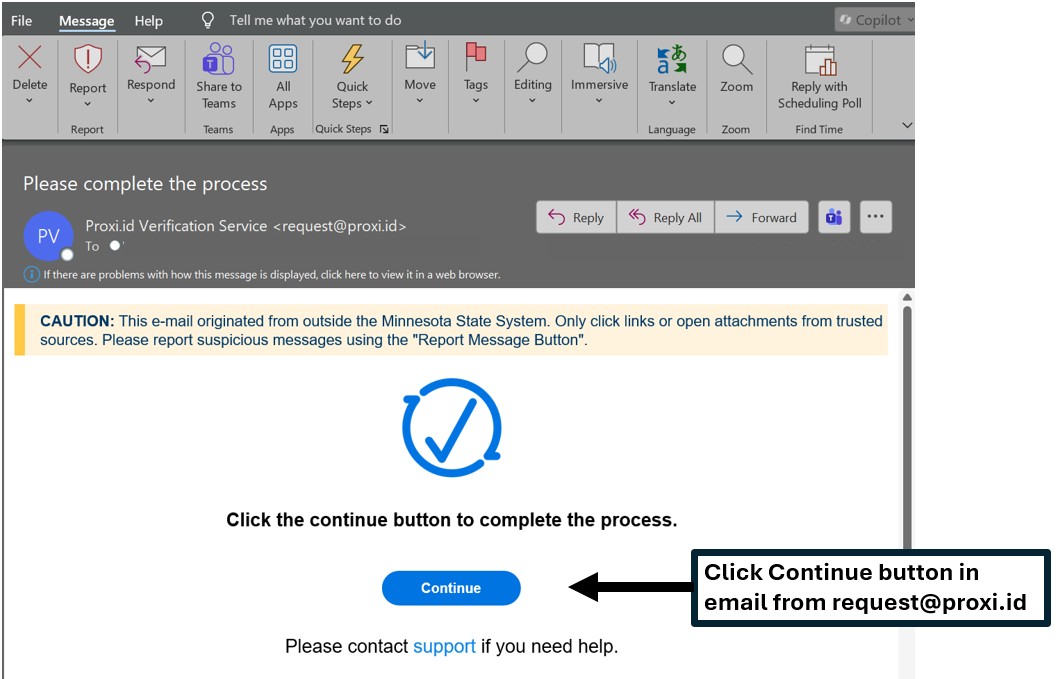
Now, you should receive an email from request.proxi.id. Click the Continue button or the link provided.
|
|
Step #11
|
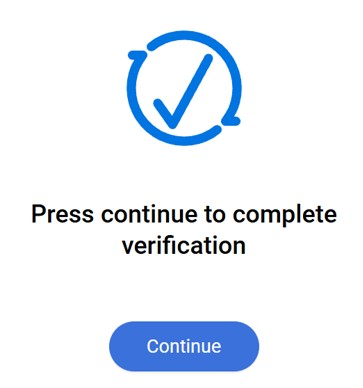
Click Contine to complete your academic status verification process.
|
Step #12
Video: 2:36
|
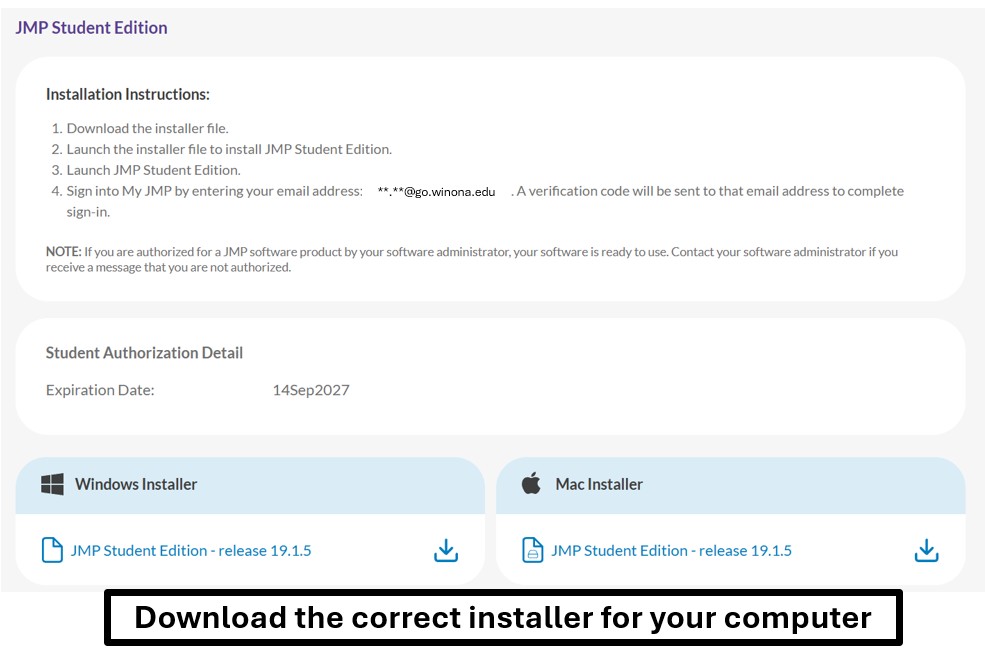
At this point, JMP has verified that you are a student at Winona State University.
Proceed at this step with downloading the correct JMP Installer for your type of computer.
Note: This will take several minutes to download.
|
Step #13
Video: 2:53
|
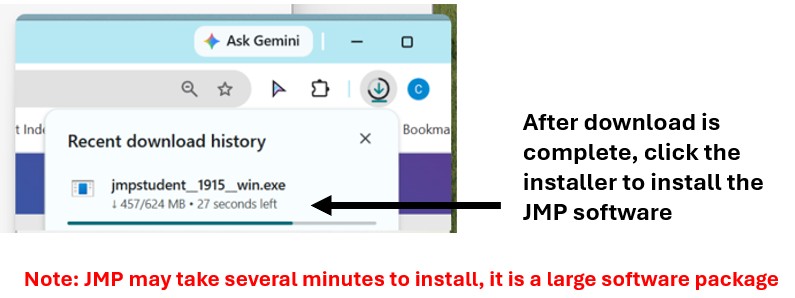
Once the JMP Installer has been download, click the installer to install the JMP software on your computer.
Again, this will take some time as JMP is a large software package.
|
Step #14
Video: 3:30
|
After JMP has been installed, open the JMP program.
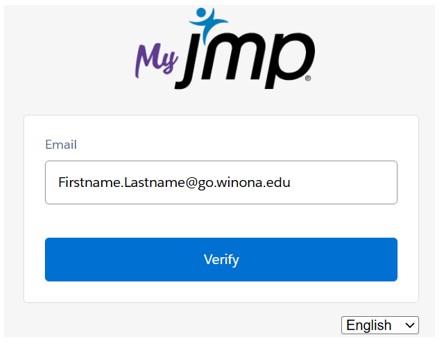
Before you can start using the JMP software, you need to associate this copy of JMP with yourself.
Thus, once again enter your Firstname.Lastname@go.winona.edu email and click Verify.
|
Step #15
Video: 3:35
|
Finally, enter the Verification Code that was sent to your WSU email account.
You can now start to use the JMP software.
|
Step #16
Video: 3:50
|
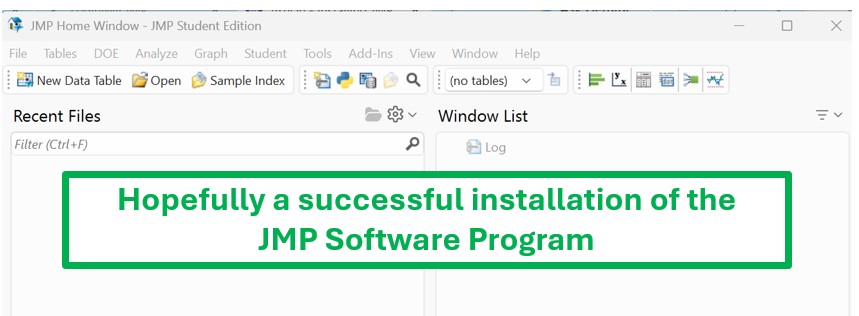
A succesful installation and verification will bring you to the JMP Home Window.
|